Arc shuts down December 22: what to save first
Export Arc's Spaces and tabs before December 22, then Chrome profiles, tab groups and Split View, and what Orbit Station 1.9 reads from the sidebar file.

On this page
Arc for macOS and Windows stops working on December 22, 2026. After that date you cannot open Arc to get to your Spaces, tabs, or other browsing data, including Arc data stored on the computer. The dates and the Arc steps below are from Arc's sunset timeline and Arc's export help, checked November 12, 2026.
Save this while Arc still opens
Arc's sunset page says that if you are not moving to Dia, you can save your Spaces and tabs as a list of links before December 22. After that date you will not be able to open Arc to get to your Spaces, tabs, or other browsing data.
Export Spaces and tabs
On a Mac, from Arc's export help:
In the Mac menu bar, go to Arc, then Settings.
Select Advanced.
Select Export Data.
Choose where to save the file, then select Save.
On Windows:
Press Control + Comma (,), or open the Arc menu and select Settings.
In the Advanced section, find Export Spaces and tabs and select Export Data.
Choose where to save the file, then select Save.
Arc saves a file named Arc Data Export.md. It has a section for each Space. It lists Favorites, pinned tabs, folders, and other sidebar tabs as links. Arc says the export is a list of links rather than a bookmarks file, so you add the links in the next browser yourself.
To copy one folder, right-click it and select Copy All Links. On a Mac, hold Option while the menu is open and select Copy All Links as Markdown to keep the titles.
Easels
Arc's export help says Easels are stored with your Arc account. You will not be able to get to them after Arc is sunset, and they do not come over to Dia. The save steps are on that page.
Site customizations
The same page says they cannot be exported from Arc, and they do not come over to Dia. You will not be able to get to them after Arc is sunset.
Ask for a copy of account data by December 15
You can request a copy of personal data related to your Arc account, or ask for that data to be deleted, until December 15, 2026. Use the chat button on Arc's sunset timeline.
The copy includes account details, such as your name, email address, and when you joined, and a record of how you have used Arc. It does not include browsing data stored on the device, such as history or passwords. Arc says it does not have access to that data. To keep history and passwords, Arc says to import them into Dia before December 22.
Dates Arc has published
From Arc's sunset timeline, checked November 12, 2026:
| Date | What that page says |
|---|---|
| October 22, 2026 | The sunset was announced. New Arc accounts can no longer be created. |
| November 23, 2026 | Arc for macOS and Windows starts showing reminders. In Arc Search for iOS and Android, AI features turn off, and you can no longer sign in or sync. Arc Search keeps working as a browser. |
| December 15, 2026 | Last day to request a copy of personal data related to your Arc account, or to ask for that data to be deleted. |
| December 22, 2026 | Arc for macOS and Windows stops working, and you can no longer sign in. Arc accounts are deactivated and Arc services turn off. Personal data associated with an account is deleted within 30 days. |
Until December 22, Arc for macOS and Windows keeps getting its usual basic updates and fixes. Arc is no longer adding new features. On December 22, Arc Search for Android is removed from the Google Play Store and from the devices it is installed on. Arc Search for iOS keeps working as a browser.
arc.net publishes the same December 22 end for macOS and Windows, the same October 22 stop on new accounts, and the same November 23 change for Arc Search.
In Chrome
These steps are from Google's help.
Profiles
A Chrome profile keeps its bookmarks, history, passwords, and other settings separate. Google's profile help says profiles are for sharing a computer, or for keeping work and personal separate.
To add one: at the top right, select Profile, then Add Chrome profile.
Tab groups
From Google's tab help for computers:
Right-click a tab.
Select Add tab to group, then New group or an existing group.
To name the group, right-click the colored circle or the name to the left, then name the group.
To close a group, right-click it and select Close group. Google says a closed group is not deleted, and is saved in the bookmarks bar or in the menu. You can open it again from there.
Split view
Google's Split View help says you can display two websites in one Chrome window.
Right-click an inactive tab and select New split view with current tab.
Or right-click the active tab and select Add tab to new split view.
A bookmarks file Chrome can import
Google's bookmark import help says to import bookmarks saved as an HTML file:
At the top right, select More, then Bookmarks and lists, then Import bookmarks and settings.
Select Choose file.
Choose the file, then select Open, then Done.
Arc says its own export is a list of links, not a bookmarks file. The Arc exporter on this site is separate. You choose StorableSidebar.json. The page says it has no upload step: a script in the tab reads the file, and no name, title or address from the file is sent anywhere. The download button is Download Chrome bookmarks (HTML).
With the boxes left as they start (both checked), the file has a folder for each space, a Favorites folder, and a Today folder inside each space.
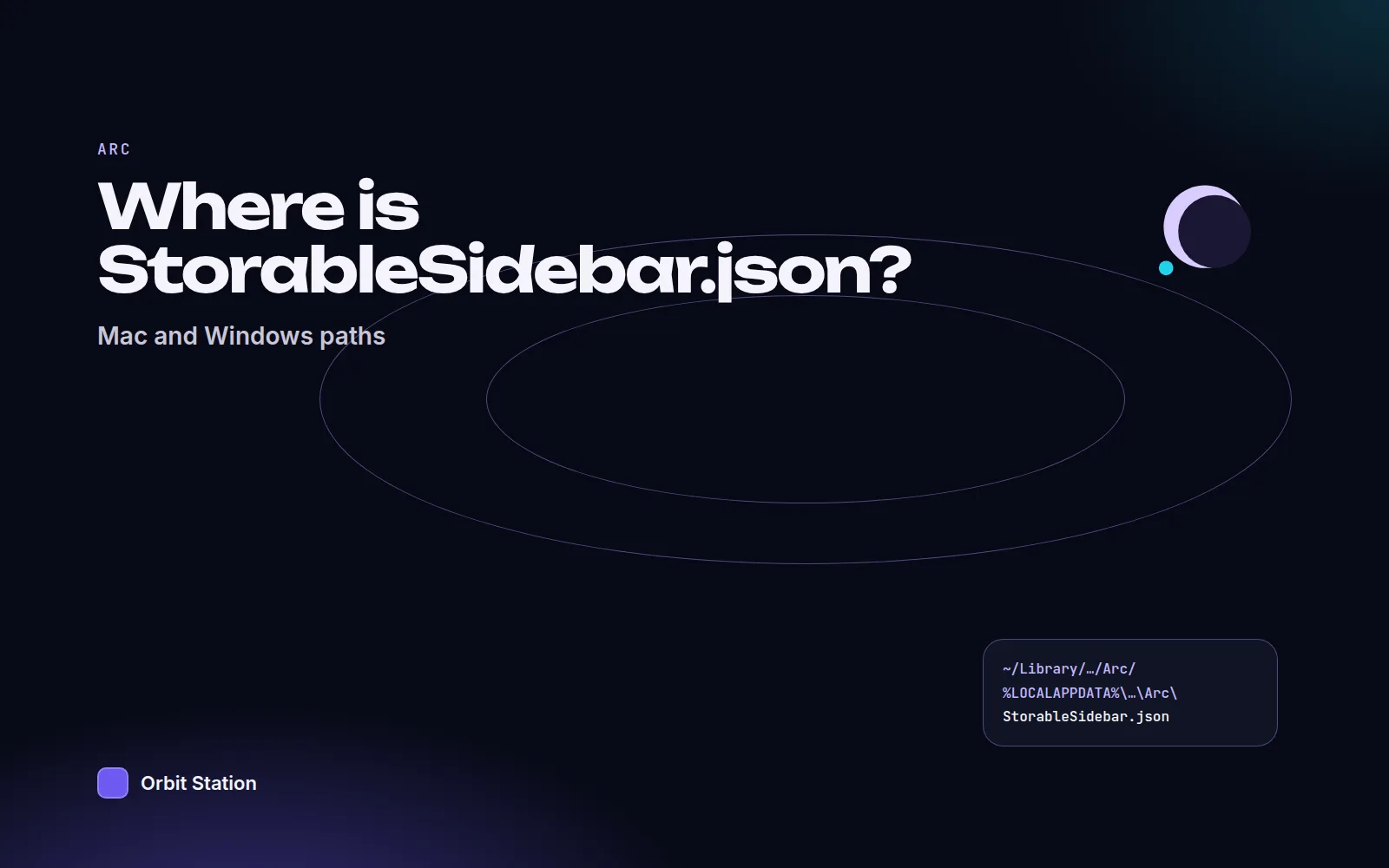
Where Orbit Station 1.9.3 says the sidebar file is:
Mac:
~/Library/Application Support/Arc/StorableSidebar.jsonWindows, Microsoft Store install:
%LOCALAPPDATA%\Packages\TheBrowserCompany.Arc_*\LocalCache\Local\Arc\StorableSidebar.jsonWindows, the other install:
%LOCALAPPDATA%\Arc\StorableSidebar.json
Find Arc's sidebar file walks through the file dialog.
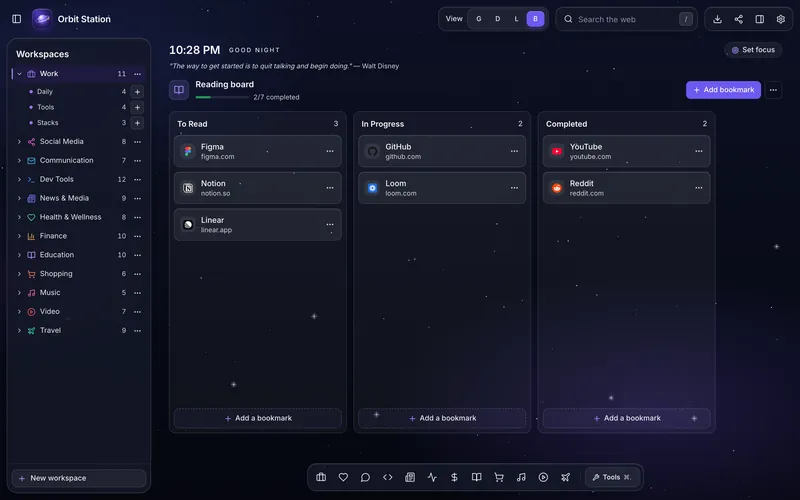
Each Space as a workspace
This is the Arc import in Orbit Station 1.9.3. It reads the StorableSidebar.json that you pick. A bookmarks HTML file works too.
On the new tab, hold Command or Ctrl and press K. The overlay is labelled Command palette. Choose Import from Arc. Or open Settings, open the section titled Data, and choose Import from Arc….
The screen is titled Bring your Arc spaces. It says: "Use Arc's sidebar file or a bookmarks .html file. Orbit reads it on this computer and uploads nothing." The drop area says "Drop the file here, or" and has a Choose file button. Under the button it says: "Accepts StorableSidebar.json or a bookmarks .html file."
If you do not know where the file is, select Where is it? on that screen. It shows the path for a Mac or for Windows, with a Copy button. Show me how lists the steps for the file dialog.
The progress labels are Pick the file, Preview, and Done. On the preview, each space has a checkbox. Select Bring them in.
These are the options as they start:
Today tabs as a stack is on. The hint is "One stack per space, ready to relaunch." Today tabs go in a section named Today, as one stack, set to open in a new window. The title is "Today in", then the space name, then the number of tabs in parentheses.
Favorites starts on In every space. They go in a section named Favorites.
Sub-folders starts on As stacks. A loose pinned tab becomes a link in a section named Pinned. A top-level folder becomes its own section. A sub-folder becomes a stack, set to open in a new window.
Live Folders as a snapshot is on. The hint is "Today's links, without Arc's automatic updates."
Put the emoji in the name is on.
A split view becomes a stack. The title is the item's title, or the page titles joined with " + ", or "Split view".
The preview has a field labelled Galaxy name for each Arc profile. Each space becomes a workspace.
Running the import again adds only what is not already there. For one space the preview says "1 space is already in Orbit." For more than one it says the number, then "spaces are already in Orbit." Then it says: "Importing adds what's new and keeps everything you changed or moved." If nothing is new, Orbit says "Everything in this file is already in Orbit." While that import can still be undone, Settings, in Data, shows Undo last Arc import.
Above 5,000 links, Bring them in stays disabled. The line is "This selection has", the number, "links. Orbit imports up to 5,000 at a time: untick a few spaces." A skipped address is described as "Only web addresses (http and https) can be saved." or "Longer than the 2,048 characters a link can hold."
Not imported:
Notes. The preview says the file holds a note's title only, not its text.
Easels. The preview says "Canvases made in Arc, not web pages." Orbit labels that row Easel.
Tabs from Arc's pop-up windows, unless you turn on the option "Tabs from Arc's pop-up windows → Read later". Off, the hint is "Off: they stay in Arc." When Read later is full, the preview says "Read later holds up to 100 pages."
Arc's multitasking page describes a window that lets you open a page without leaving the app you are in. The shortcut it prints is CMD + Option + N.
Coming from Arc is the longer map of the same import. Moving from Arc to Chrome is the longer page on this site. Where is Arc's StorableSidebar.json? is the path guide.
FAQ
When does Arc for Mac and Windows stop working?
Arc for macOS and Windows stops working on December 22, 2026. After that date you cannot open Arc to get to your Spaces, tabs, or other browsing data. That is from Arc's sunset timeline. We checked that page again on November 13, 2026, and the date was the same.
How do I export Spaces and tabs?
On a Mac, go to Arc, then Settings, then Advanced, then Export Data, and save the file. On Windows, press Control + Comma, or open the Arc menu and select Settings, then in Advanced find Export Spaces and tabs and select Export Data. Arc's export help says the saved file is a list of links, not a bookmarks file.
Where is StorableSidebar.json?
On a Mac, Orbit Station lists ~/Library/Application Support/Arc/StorableSidebar.json. On Windows, the Microsoft Store path is %LOCALAPPDATA%\Packages\TheBrowserCompany.Arc_*\LocalCache\Local\Arc\StorableSidebar.json, and some installs use %LOCALAPPDATA%\Arc\StorableSidebar.json. The click-by-click path is in Where is Arc's StorableSidebar.json?.