What Orbit Station does today, and what 1.9.4 added
The Chrome Web Store installs Orbit Station 1.9.4. Here is that build, and what version 1.9.4 added.
On this page
This post is from the team that builds Orbit Station.
The Chrome Web Store listing installs Orbit Station 1.9.4. That is what "today" means in this post: the build the store gives you, checked against the 1.9.4 manifest and code. Versions 1.9.1, 1.9.2, 1.9.3 and 1.9.4 are on our what's new page under "Updates since 1.9.0".
What you get from the store today
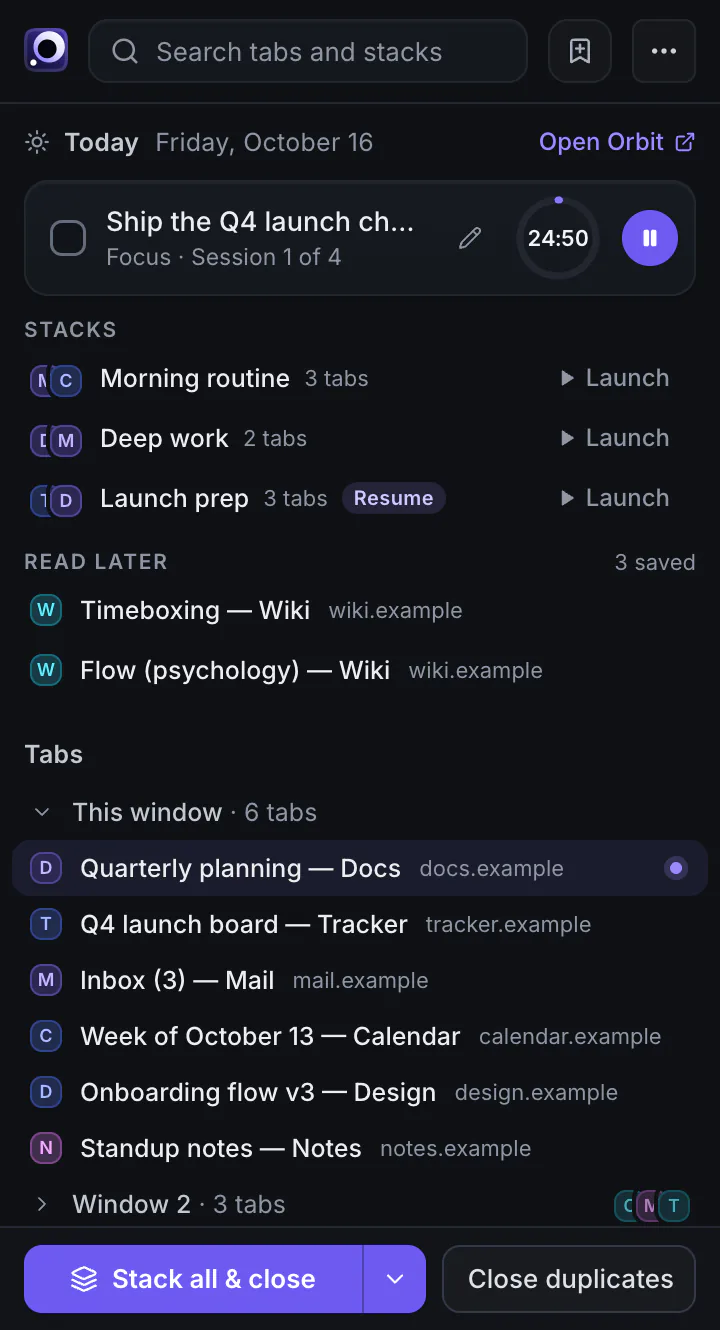
The listing has a block named "Never Lose a Tab". Click the Orbit icon and the side panel opens beside the page you are on. It shows today's focus and the timer, your stacks, your read-later list, and the tabs open in every window, grouped by window, with search. Tabs in Incognito windows are not listed, saved or closed. The 1.9.4 manifest asks for the sidePanel and contextMenus permissions for that panel and for the icon's menu. In the 1.9.4 code the menu items are Open Orbit panel, Stack all tabs & close, Close duplicate tabs, and Save this page for later.
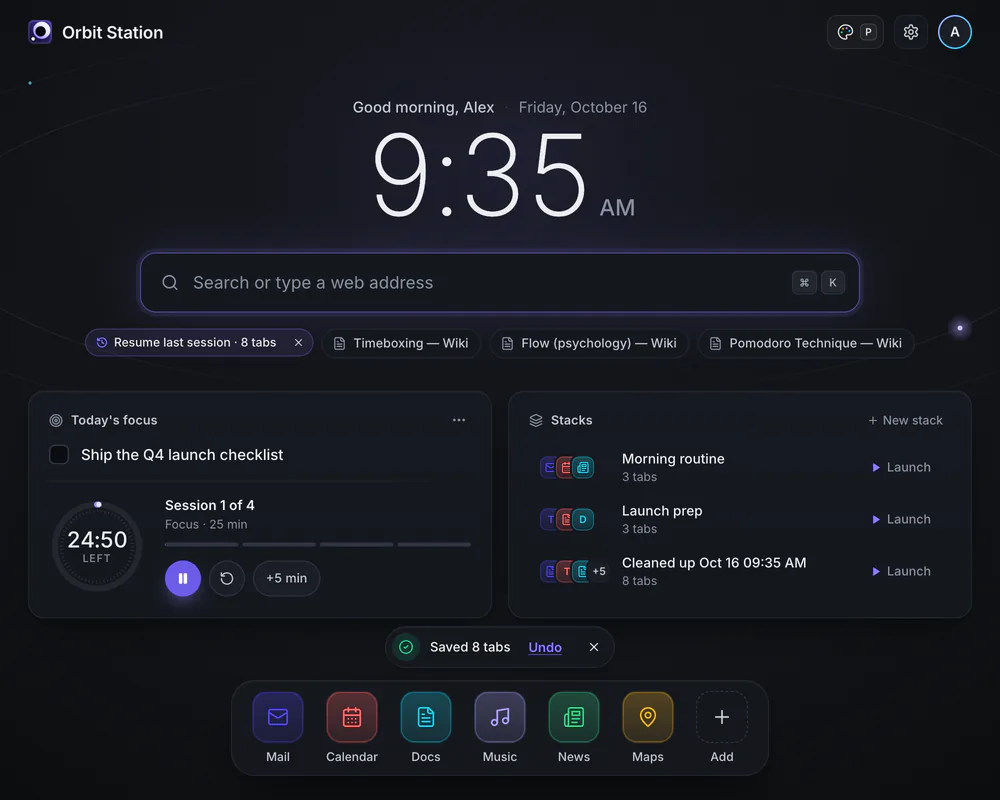
A stack is a set of pages you open together. The listing puts it this way: save the pages you need for a task as a stack, then reopen them all at once. The 1.9.4 manifest suggests Command+Shift+1 (Ctrl+Shift+1 on Windows and Linux) and Command+Shift+2 or Ctrl+Shift+2 for the first two stack hotkeys. The listing says a shortcut in the Command or Ctrl+Shift+1 through 9 range can launch a stack from anywhere in the browser once you set it. Hotkeys 3 through 9 have no suggested key. You assign those.
Session Capture is Command+Shift+0 on a Mac and Ctrl+Shift+0 on Windows and Linux. The manifest names that command "Save current window as a stack". Save for later is Command or Ctrl+Shift+L, and it parks the page you are on in the read-later list.
Close duplicates, in the listing's words, "shows every extra copy first and keeps the pinned or most recent one." Undo puts the closed tabs back. Recently cleaned keeps the last 10 clean-ups on the device. Common new-tab problems and how to fix them pairs each one with Chrome's own step.
On the new tab, Command+K or Ctrl+K opens the command palette. The listing says you can find your links, notes and to-dos, launch them, switch workspaces, or capture the current session. A row can also open an assistant site you choose, with your question filled in. That row is in the 1.9.4 palette.
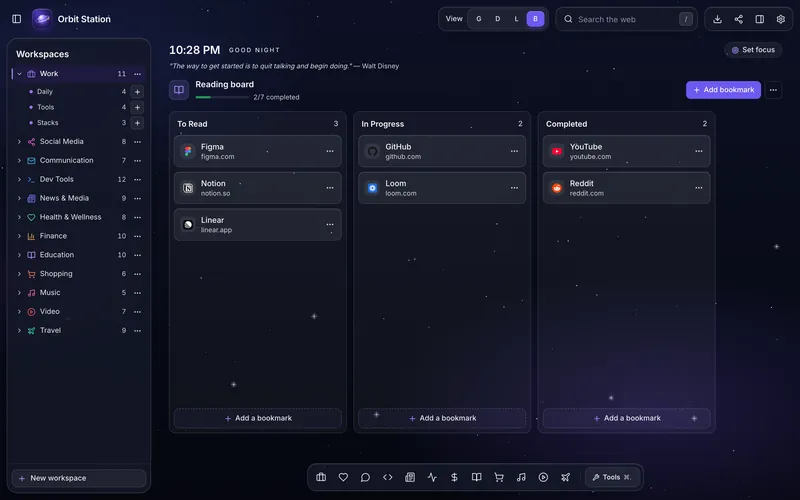
Workspaces hold your links and stacks. The listing describes four views: Galaxy, Grid, List, and Board. A reading board has To Read, In Progress and Completed. The cover on this post is the Board view.
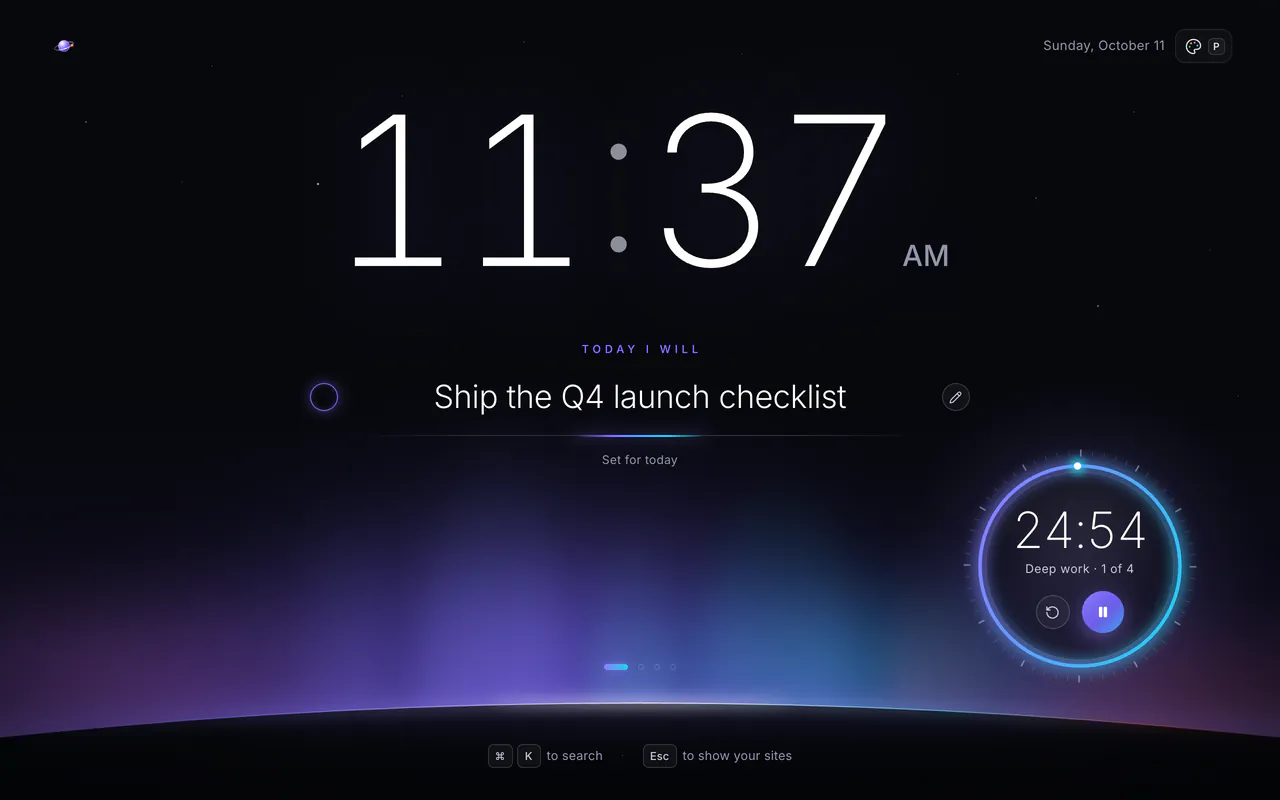
The listing also describes ten looks in this build. New installs open on Ecliptic, a sky drawn on your computer. An update keeps the look you have. Focus is one clock, one intention and a timer.
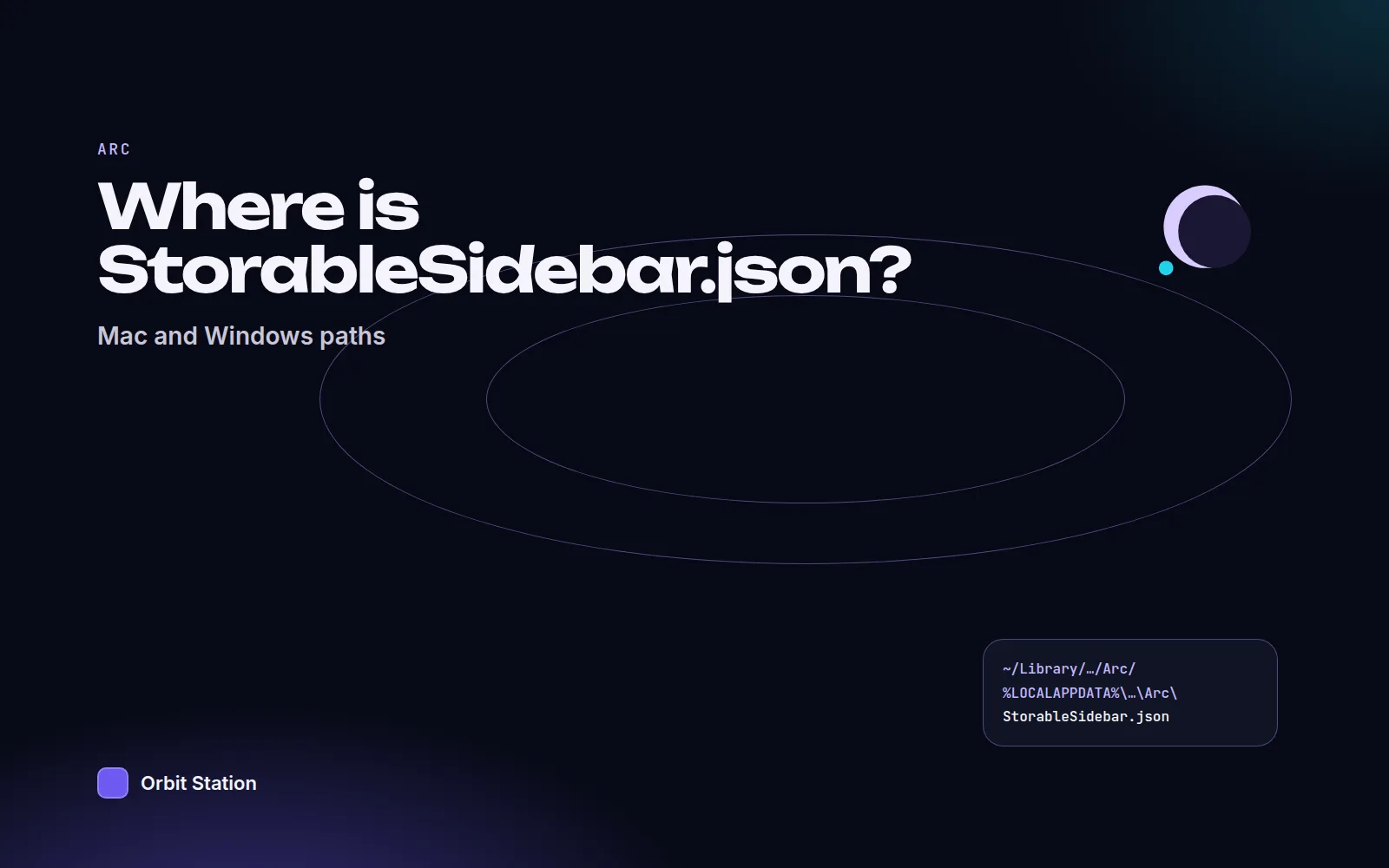
Import from Arc is in this build: "Import from Arc" in the command palette, and "Import from Arc…" under Settings, then Data. You pick StorableSidebar.json and see a preview first. Paths are in Where is Arc's StorableSidebar.json?.
The listing says the free plan stores your links, workspaces, notes and to-dos in the browser and does not ask for an account. Details are in the privacy policy.
Updates since 1.9.0
These updates are in the 1.9.4 build the store installs. On what's new they sit under the heading "Updates since 1.9.0", with the 1.9.4 note first. In this post, 1.9.4 has its own section below.
1.9.3: Easier for everyone. Pick the day your calendar week starts in Settings, then Calendar. When a notice offers Undo after you delete something or save tabs, Ctrl+Z does it too, and Command+Z on a Mac. Warnings are easier to read on light looks, and the keyboard focus ring is easier to see on dark ones. On this site, the "Already have Orbit?" buttons open Orbit if you already have it.
1.9.2: One step to start. New installs begin with "Start here". Launching a stack switches to its pages that are already open instead of opening copies. Importing from Arc also takes a bookmarks HTML file.
1.9.1: Back up everything. One file holds your workspaces, stacks, galaxies, notes, to-dos, boards, calendar, read-later list and settings. Restoring shows what will change first, and you can undo it. Deleting a workspace or a link has Undo too.
What 1.9.4 added
On what's new this note is headed "1.9.4: New looks and packs", and the full list is there. These are its changes to the Arc import and to upgrading:
When a new install opens its welcome tab and one of our Arc guide pages is already open, the welcome tab offers the Arc import first. The check looks only at tabs on orbitstation.app.
The Arc import shows where the sidebar file is without a click on "Where is it?". The Windows path no longer has a * in it, so you can paste it into the file dialog.
After an Arc import, a new screen can open the first imported space and the side panel. "Undo this import" takes you back to the preview.
The Arc import has a "Share import stats" box, with the same choice as a switch in Settings, then Privacy. It is off by default.
If your sign-in has run out when you start an upgrade, Orbit asks you to sign in again and tries once more.
When a signed-out Orbit has opened the website's checkout page, it asks "Paid on the website?" in Settings, then Plan, and offers a sign-in.
The install button on this site leads to the store listing. If something here disagrees with the store page, the store page is the one your browser will install.
FAQ
Which Orbit Station version does the Chrome Web Store install?
Version 1.9.4. The install button on this site leads to the Chrome Web Store listing.
What does Session Capture do in 1.9.4?
It saves the current window as a stack. The shortcut is Command+Shift+0 on a Mac and Ctrl+Shift+0 on Windows and Linux. That command is in the 1.9.4 manifest, and the store listing describes it the same way.
Are versions 1.9.1, 1.9.2 and 1.9.3 out yet?
Yes. The Chrome Web Store installs 1.9.4, and that build has the 1.9.1, 1.9.2 and 1.9.3 changes too.
Is version 1.9.4 out yet?
Yes. It is the version the Chrome Web Store installs.
Where can I read the release notes?
On the what's new page, in "Updates since 1.9.0", below the 1.9 sections and above the 1.8 looks.